Annotating an orthomosaic
Annotations let you mark up a map with your own points, lines and polygons, such as a parked vehicle, an access road or the outline of a garden bed. Each has a name, a colour and a comment thread.
Before you start

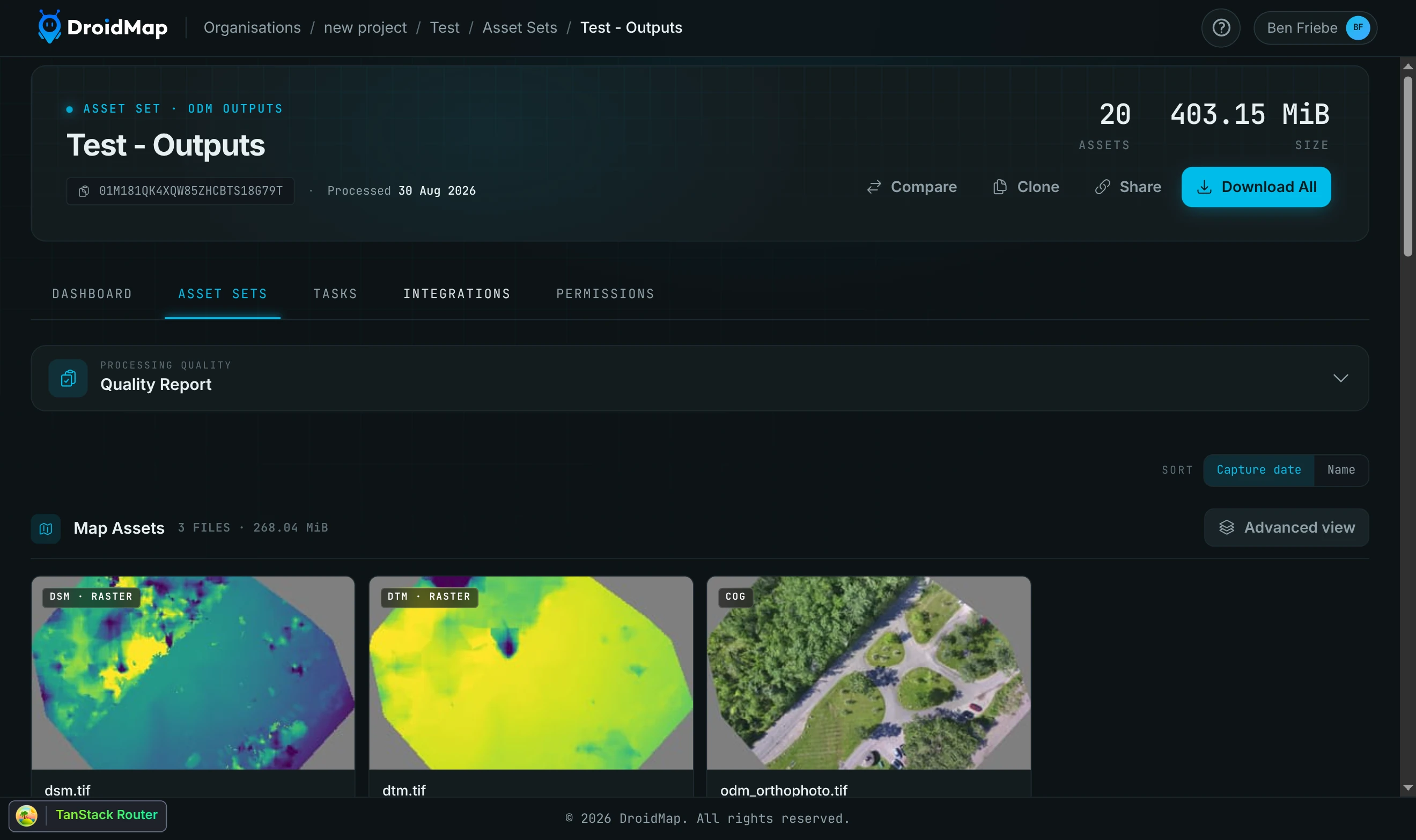
You need an asset set that contains an orthomosaic. An orthomosaic is produced when a mapping job finishes, and it appears in the asset set's Map Assets section alongside the elevation models (DSM and DTM).
1. Open the orthomosaic in the advanced map
Open the project, go to Asset Sets, and open the asset set. Then either:
- click the orthomosaic's card in the Map Assets section, or
- click Advanced view at the right-hand end of the Map Assets heading.
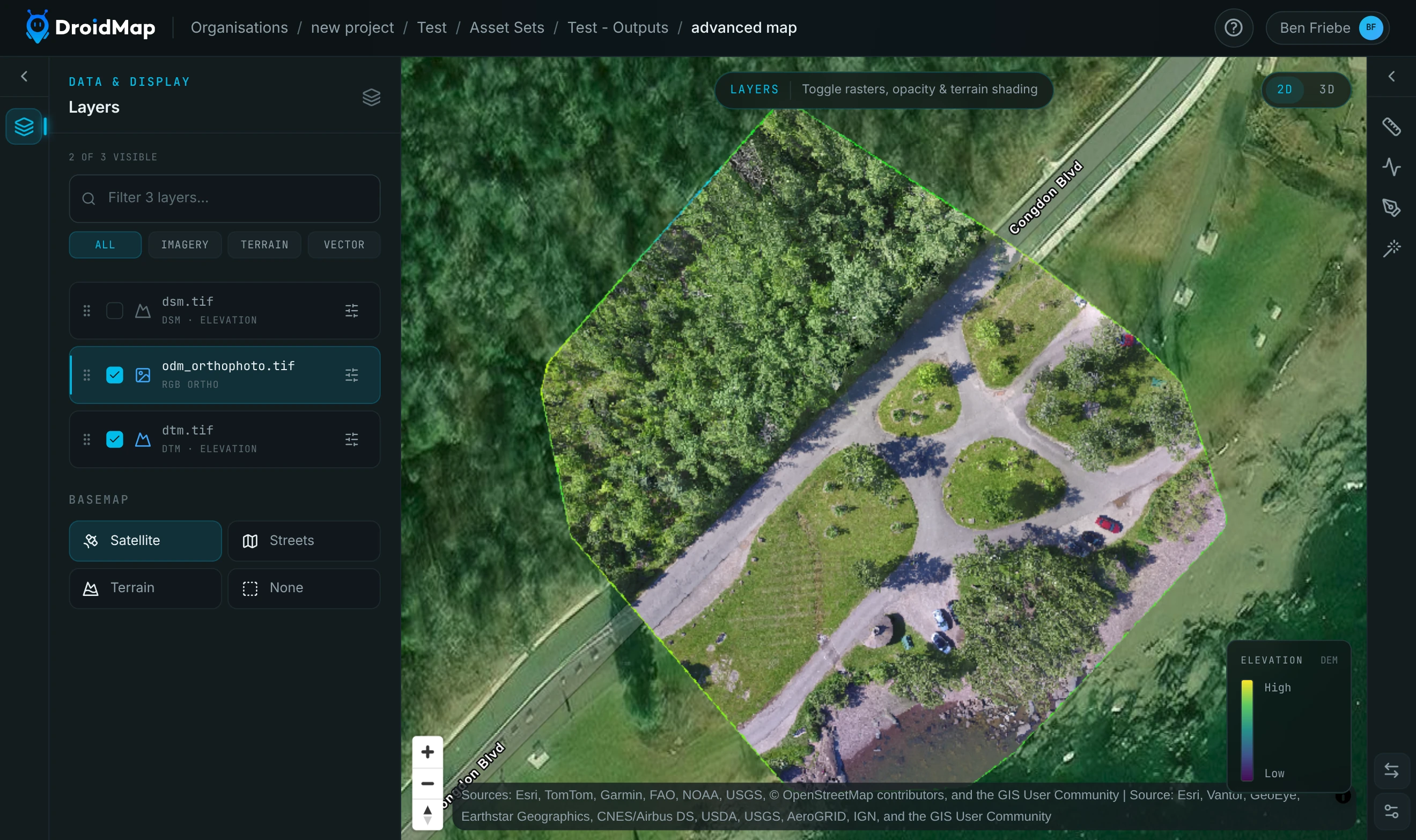
Both open the advanced map with the orthomosaic loaded. The breadcrumb at the top ends in advanced map, and the Layers panel on the left lists the orthomosaic and the asset set's other map layers.
2. Open the Annotate tool
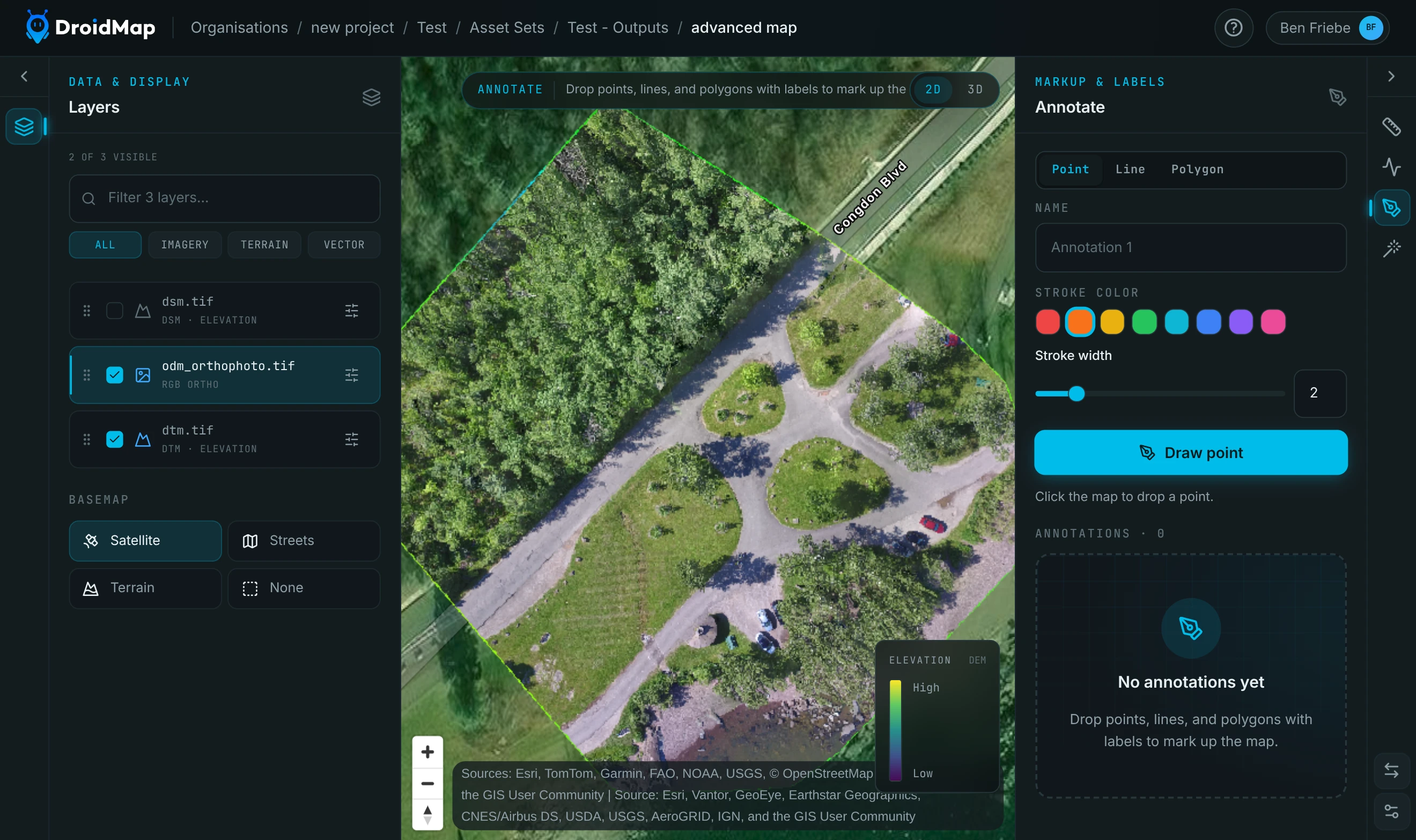
The tool rail runs down the right-hand edge of the map. Click the pen icon, Annotate, to open the annotation panel (headed Markup & labels).
3. Draw your first annotation
-
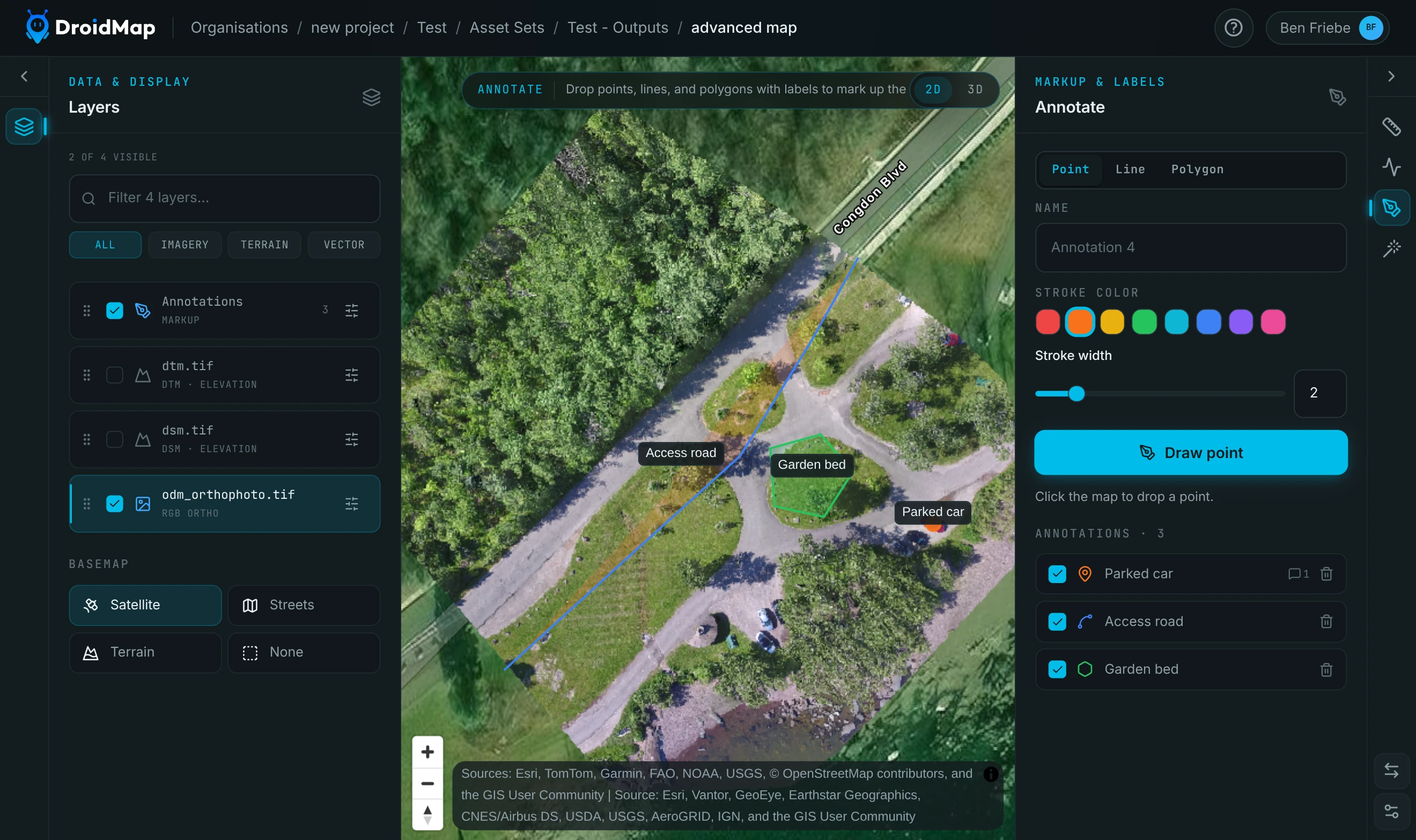
Pick a shape: Point, Line or Polygon.
-
Optionally type a Name. If you leave it blank the annotation is called Annotation 1, Annotation 2, and so on.
-
Optionally pick a Stroke color and Stroke width. Polygons also have a Fill color and Fill opacity.
-
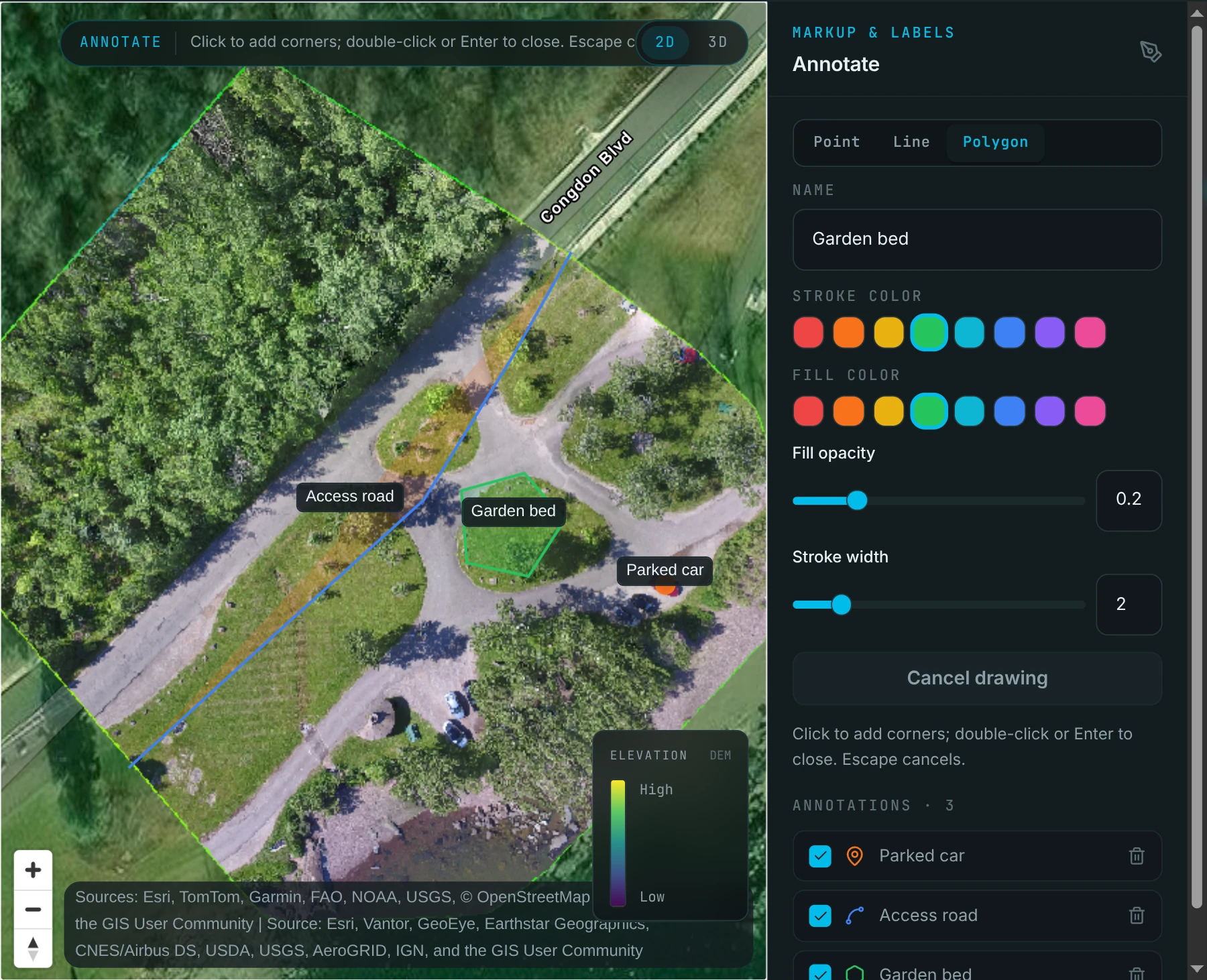
Click Draw point, Draw line or Draw polygon, then draw on the map:
- Point: click the map once.
- Line: click to add each point. Double-click, or press Enter, to finish.
- Polygon: click to add each corner. Double-click, or press Enter, to close it off.
Press Escape at any time to cancel the shape you are drawing, or click Cancel drawing.
As soon as you finish the shape, it is saved, and you will briefly see Saving annotation…. There is no save button to press. The annotation appears on the map with its name as a label, and in the list at the bottom of the panel.
4. Add more annotations
After each annotation saves, the drawing tool stays switched on, so you can go straight on to the next one: click the map again to draw another shape of the same type, or pick a different shape, name and colour first. Switching shape keeps the tool switched on.
Tip: the name you typed is kept for the next annotation. Change it (or clear it to get an automatic Annotation N name) before you draw the next shape, otherwise you will end up with several annotations with the same name.
Every annotation you add is counted under Annotations · N at the bottom of the panel.
5. Edit, comment on, hide or delete an annotation
In the annotation list:
- Click a row to move the map to that annotation and open it for editing. You can change its name and style, then click Update to save the change (or Cancel to discard it). The shape itself cannot be redrawn, so delete it and draw a new one instead.
- Untick the checkbox to hide an annotation from the map. This only affects your view; it does not delete anything.
- Click the bin icon to delete an annotation. This happens straight away, with no confirmation, and cannot be undone.
While an annotation is open for editing you can also leave comments on it: type in Add a comment… and click Add (or press Enter). The comment is saved straight away, and the annotation's row shows a comment count. Click + New to go back to drawing new annotations.
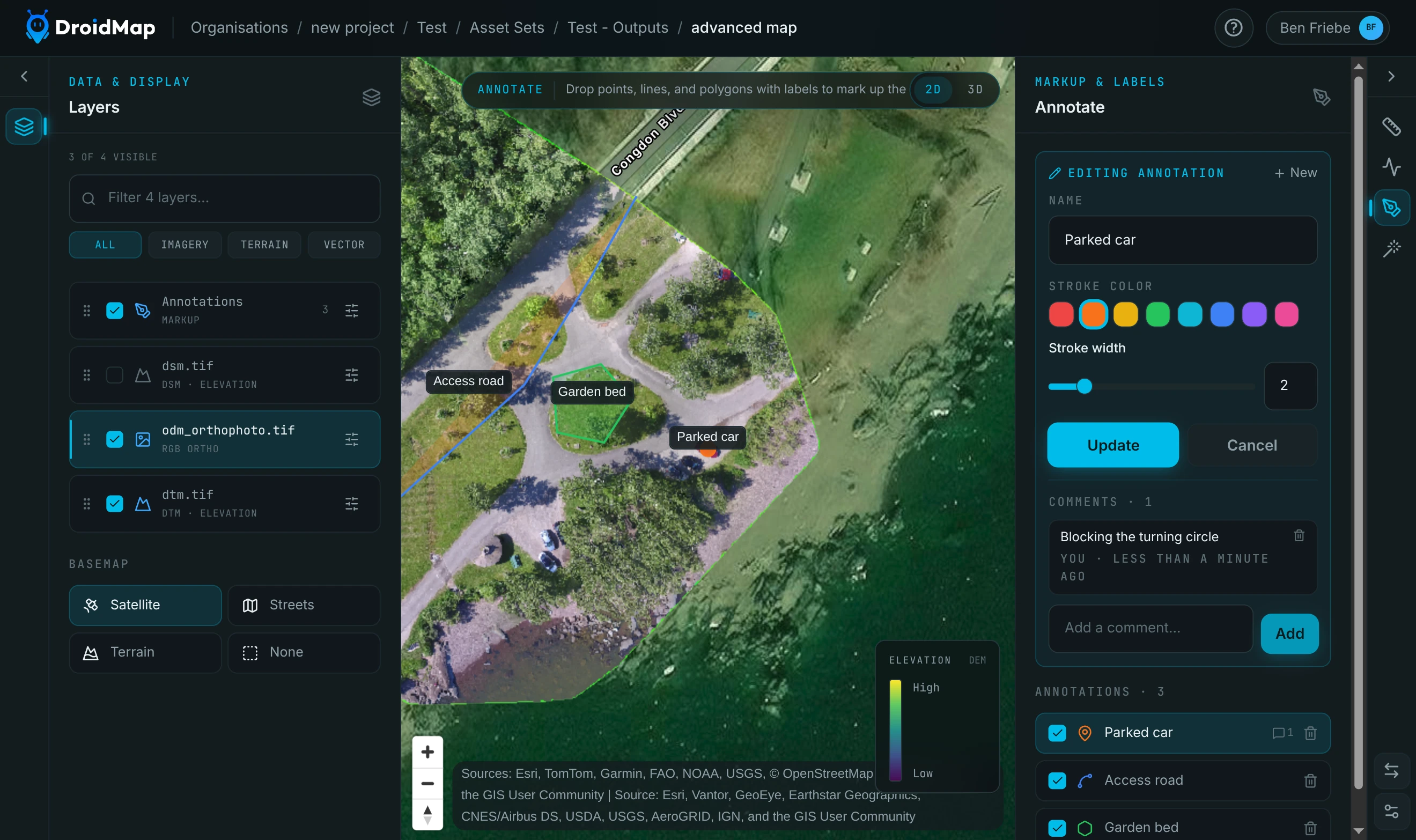
All your annotations also appear as a single Annotations layer at the top of the Layers panel. Untick it to hide them all at once.
Where your annotations are saved
Annotations are saved to the asset set, not to the single orthomosaic you drew them on. That means:
- They are saved to DroidMap as soon as you draw them, so they are there the next time you open the map, on any device.
- Everyone with access to the project sees the same annotations.
- They show over every map layer in the asset set: the orthomosaic, the elevation models, and any other raster you switch to in the same asset set.
- An annotation drawn in one asset set does not appear in a different asset set, even one covering the same area.
To find them again, open the asset set, click Advanced view (or the orthomosaic's card), then click Annotate. The list in the panel is every annotation saved to that asset set.
Troubleshooting
The panel says annotations are saved per asset set. The map was opened without an asset set. Go back to Asset Sets, open one, and enter the map from there.
An annotation failed to save. Your drawing is kept on the map and the panel shows an error with Retry and Discard buttons. Check your connection and click Retry.