Export your image labels
When you have labelled your images, export the labels as a single file for your training tool. DroidMap doesn't train models itself, so this is how your labels get to the tool that does.
The file is in COCO format, a standard for object detection data that most model training tools can read.
1. Open the export menu
On the labelling page, click Export labels at the top right. The button is available once at least one image has been reviewed.
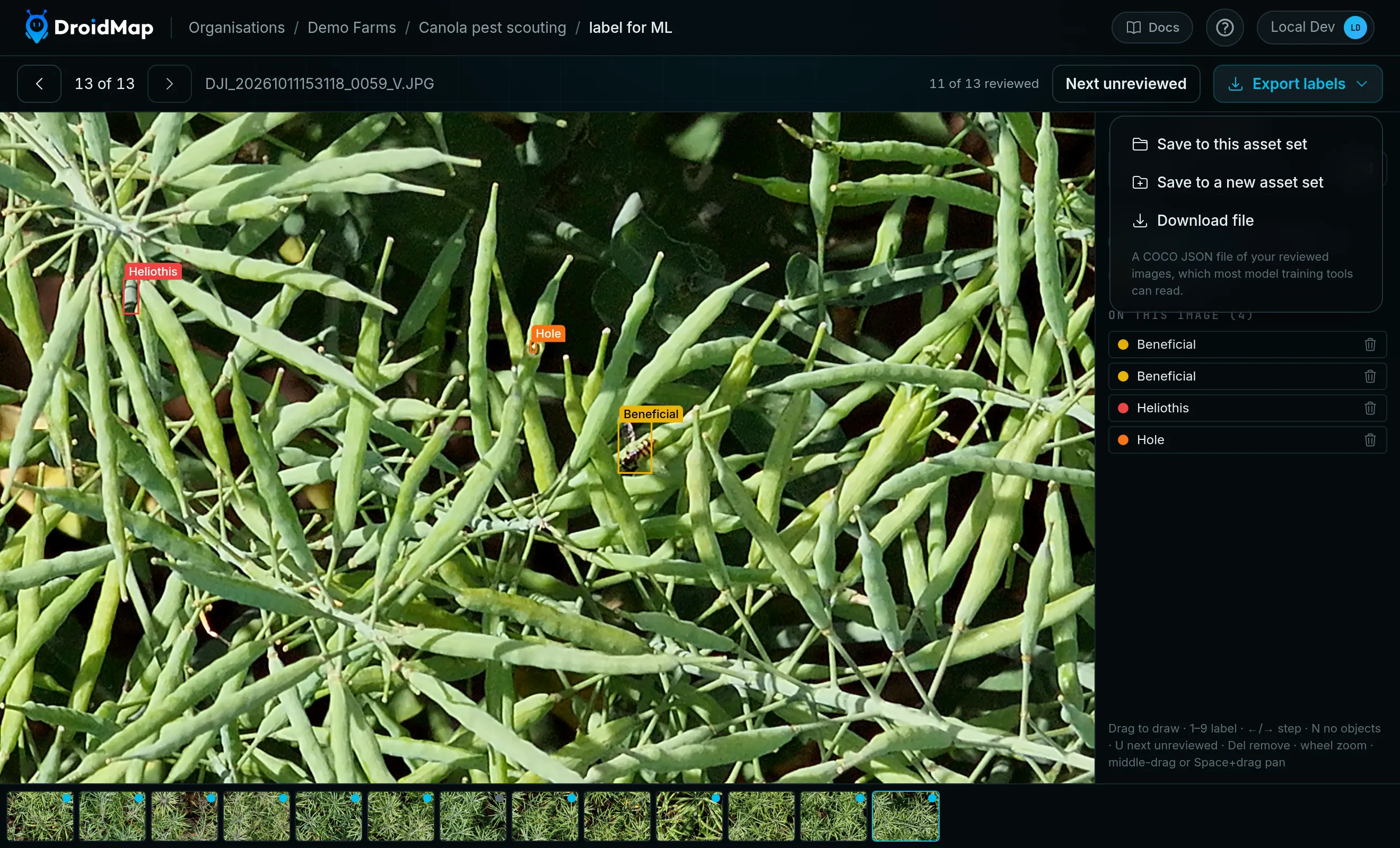
2. Choose where it goes
- Save to this asset set adds the file to the set you are labelling.
- Save to a new asset set creates a set holding only the file, named after your set plus the date and time.
- Download file saves the file to your computer.
Saving to an asset set is the easiest way to keep exports with your project and share them. If you plan to run a mapping job on this set, choose Save to a new asset set instead, so that the file stays out of the job's input images.
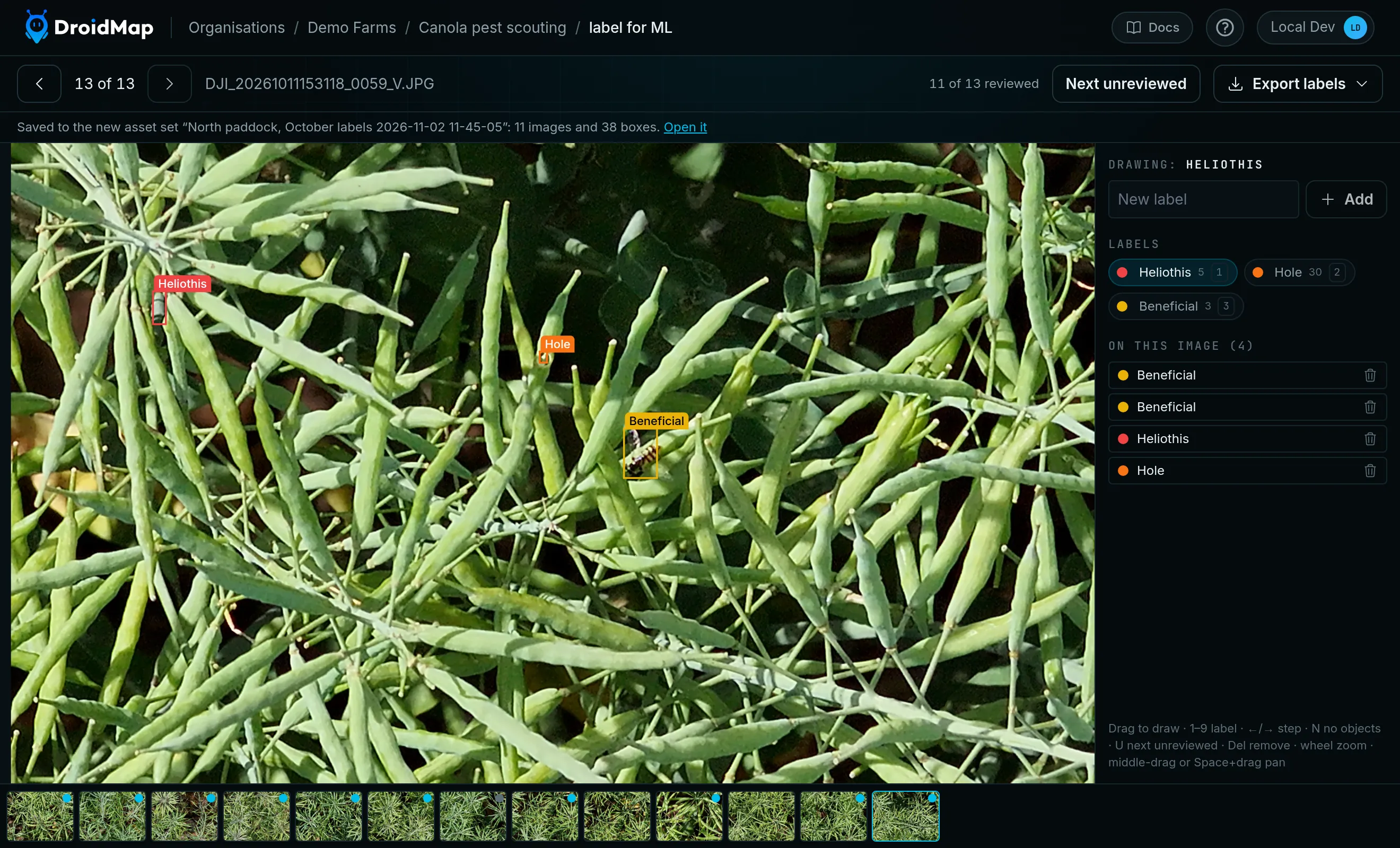
A message under the top bar confirms what was exported. After saving to a new set, click Open it to go there.
Saved files appear in the Data section of the asset set, where you can download them.
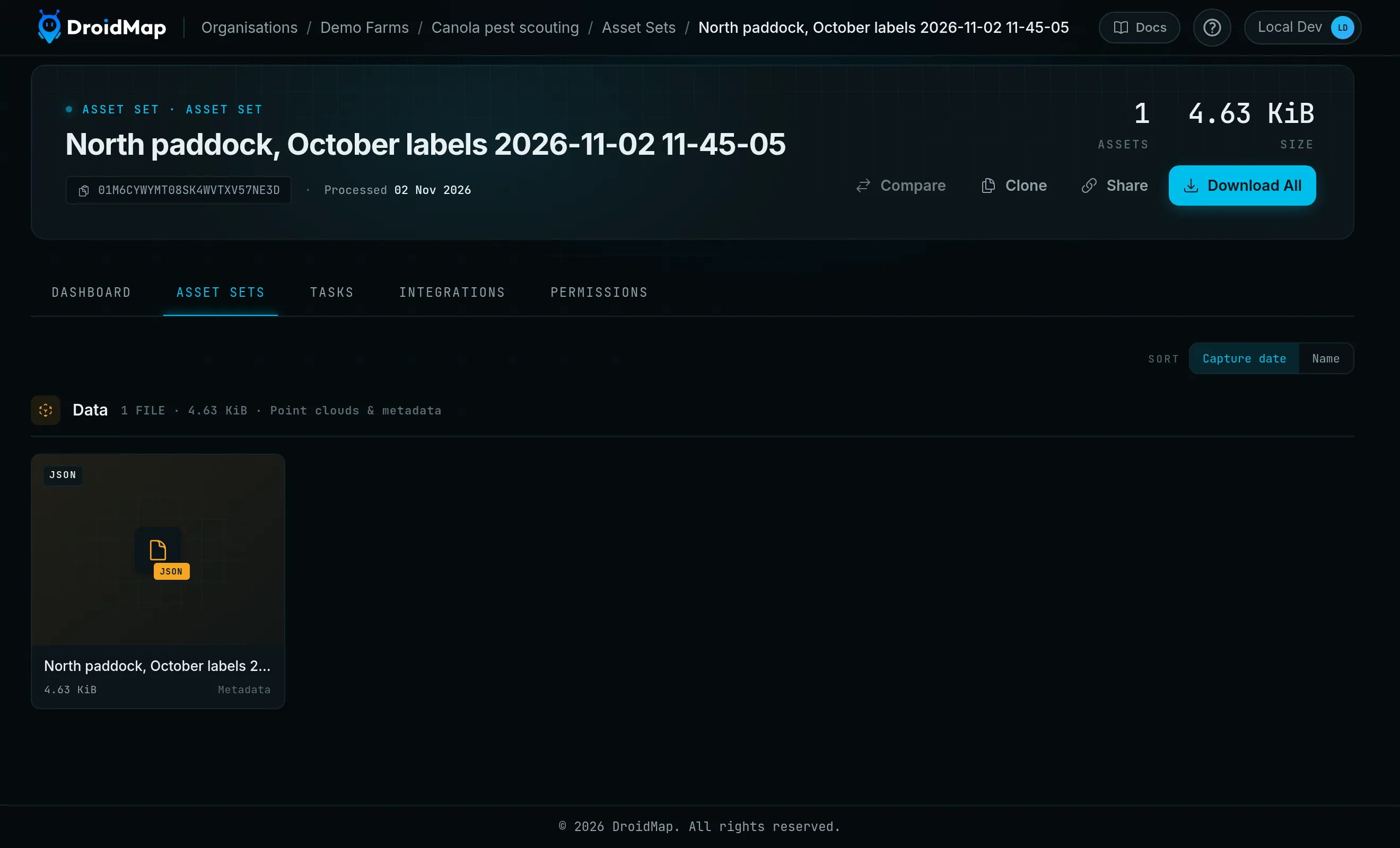
Each export is a new file with the date and time in its name, so earlier exports are kept. An export is a snapshot: if you change your labels, export again.
Saving to an asset set needs permission to add to it, and some kinds of set can't take new files. If an option can't be used, it is greyed out in the menu.
What's in the file
An export includes only your reviewed images: those with boxes, and those marked as having no objects. Images nobody has looked at are left out, so they can't teach your model that whatever is in them is background.
The photos themselves aren't in the file. Each entry refers to its photo by file name, so your training tool needs a copy of the photos with the same names. You can get them from the asset set with Download All.
Here is part of a real export, from the set shown above:
{
  "info": { "description": "North paddock, October" },
  "images": [
    {
      "id": 1,
      "file_name": "DJI_20261011152732_0034_V.JPG",
      "width": 4096,
      "height": 3072
    }
  ],
  "categories": [
    { "id": 1, "name": "Beneficial" },
    { "id": 2, "name": "Heliothis" },
    { "id": 3, "name": "Hole" }
  ],
  "annotations": [
    {
      "id": 1,
      "image_id": 1,
      "category_id": 2,
      "bbox": [1366.4, 1212.6, 113.6, 115.2],
      "area": 13086.72,
      "iscrowd": 0
    }
  ]
}
- images lists each reviewed photo and its size in pixels. An image marked as having no objects appears here with no annotations.
- categories lists your labels in alphabetical order. A label is only included if at least one box uses it.
- annotations lists every box. bbox is the box's left edge, top edge, width and height, in pixels from the top-left corner of the file.
Troubleshooting
Export labels is greyed out. No images have been reviewed yet. Draw a box or mark an image as having no objects.
The message says some images were left out because their pixel size is unknown. DroidMap needs an image's size to work out its boxes in pixels, and it doesn't have it for those images. Their labels are safe but aren't in the file. If it keeps happening, contact us.
The message says The export failed. Your labels aren't affected. Check your connection and try again.
Boxes are in the wrong place on some photos. Boxes are measured on each photo as it is stored in the file. Some photos, phone photos especially, also carry a note saying how to rotate them, and some training tools apply it when they load an image. If only those photos are affected, turn that rotation off in your tool.
My training tool can't find the images. Check that the photos sit where the tool expects them and still have their original names, because the file refers to them by name.